

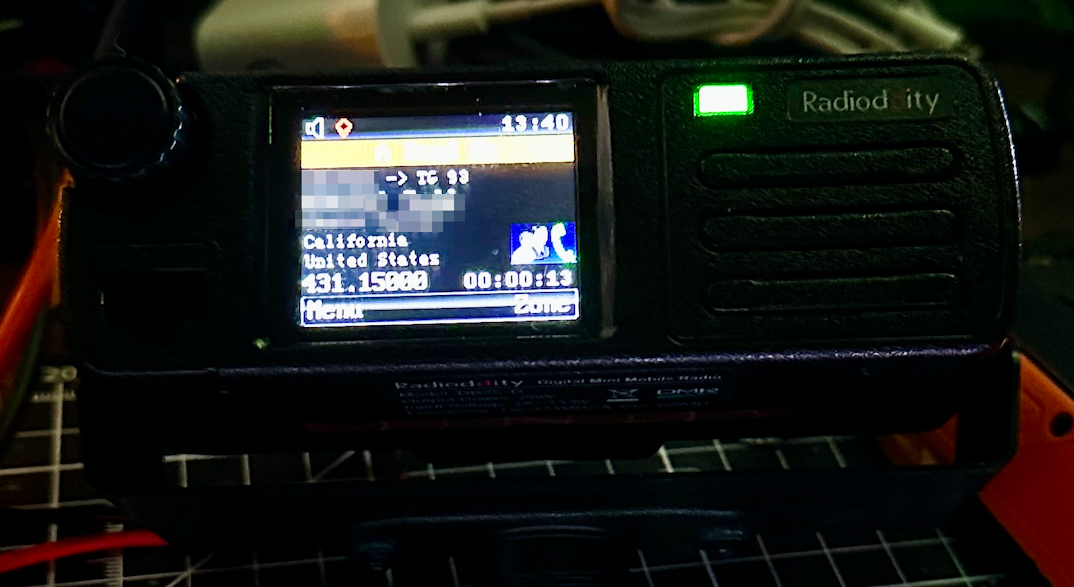
Updating the firmware
Get the latest firmware/CPS from Radioddiity (as of 6/25/25 the latest fw was dated 2-10-2025)
https://radioddity.s3.amazonaws.com/2025-02-10_DB25-D_firmware_update_release_2025-02-10.zip
Follow these instructions for updating the firmware
https://www.radioddity.com/blogs/all/how-to-update-radioddity-gd-88-db25-d-firmware
Download the Radioddity version of CPEditor from https://www.cpeditor.co.uk/ and install it
Get radio turned on and connected and click Read from Radio
Getting all Ham contacts
Click Tools > Write Ham Contacts
In the new window click the Generate New Contact List button
Select the countries you want to load. With the latest firmware, all DMR contacts will fit. Click Select All.
Click the Generate button
Click the Write to Radio button. Writing all contacts to the radio took about an hour for me.
Adding Repeaters
In the toolbar, click Import/Export then click Repeater Finder
In the Repeater Finder window, enter your Maidenhead locator and select the distance/types you’d like to find and click Find Repeaters.
Check the repeaters you’d like to add. In the lower left, decide which zone you’d like to add them to.
Click the Add Selected Repeaters button. You’ll be prompted if you’d like to automatically assign RX Groups. I clicked Yes and it seems to work well.
Other Settings
Tones/Beeps are under the Other Settings tab
Button Settings tab has drop menus for assignable buttons. Assign DUAL_WATCH_TOGGLE to one of your buttons to be able to turn Dual Watch on/off.